Q Codes
- Michelle Cabaya (Unlicensed)
Drivers can text or email Q codes to X Dispatch to update.
How Q Codes Work
When an order is dispatched to a driver, X Dispatch will send an email-to-text to the driver's phone and the driver responds to the text message with a Q code. For example, the driver would respond "QY" for confirmed or "QP" for picked up. When the Q code is received by X Dispatch, the information will be added, and use the timestamp that the email was sent as the time stamp on the order.
The responses should also include the associated order number. For example "QY 12345".
Q Codes
| Q Code | Description |
|---|---|
| QY | Confirmed |
| QR | Rejected |
| QRD | Received at Dock |
| QAP | At Origin |
| QNP | Next Pickup |
| QP | Picked Up |
| QAD | At Destination |
| QND | Next Delivery |
| QD | Delivered Requires the POD after the code. Example: QD Ryan R |
| QZ | Move to Zip |
| QCI | Driver Check In |
| QCO | Driver Check Out |
| QO | Defines Order Number |
How to Set Up Q Codes
Inbound Email Settings
An Inbound Email must be set up on an active profile in the Mail Manager. See Mail Manager.
- Go to Action > Mail Manager.
- Click the Edit Profile icon
 .
. Click Add.
To edit a profile, select the mail account you would like to edit by clicking on it, it will be highlighted in blue, then click Properties
Enter a Profile Name and the number of minutes you would like to check for inbound or outbound email messages in the Frequency field.
Quick Tip
It is recommended that the Frequency is set between 1-3 minutes.
- Check Enable inbound email.
Enter the information for the Inbound Email section.
- Enable inbound email - If checked this will receive email through the email server set up in the Inbound Email settings.
- Inbound mail type - How the incoming email will be accessed.
- POP3 - This is recommended when email will only be accessed in X Dispatch. The server listens on well-known port 110. Encrypted communication for POP3 is either requested after protocol initiation, using the STLS command, if supported, or by POP3S, which connects to the server using Transport Layer Security (TLS) or Secure Sockets Layer (SSL) on well-known TCP port 995.
- IMAP - This is recommended when you are accessing an email from multiple devices. The server typically listens on port number 143. IMAP over SSL (IMAPS) is assigned the port number 993.
- Host - POP3 or IMAP email server. This information would be provided by your email service provider.
- Username - Usually your email address.
- Password - Password used with the username above for your email.
- Port - Port provided by your email service provider.
- Secure Connection - This should be checked if your email provider requires SSL/Secure Connection
- Click Save.

Setting Up the Message Format
A message format must be set up to send messages.
- Add or edit a message format. See Message Formats (Classic Operations App).
- On the General tab set the Message Type to "Driver".
- Set the Return Email Name to "[OrderID]" with no quotes.
- Set the Return Email Address to the email address that you set up in the Mail Manager above.
- Set the Message Subsystem to "Two-way Text Messaging".
Set the TCP Protocol to "0-SMTP".

Go to the Format tab to set up the message format.
When setting up messages for email-to-text note that some carriers auto-truncate text messages.
Example
You can customize your message format and use Available Fields on the left to generate order information.

- Click OK.
Setting Up the Driver Record
The driver record must be set up.
- Add or edit a driver record. See Drivers (Classic Operations App).
- Set the Secondary Format to the message format you added or edited above.
Set the Secondary Email to the email-to-text address the driver's cell carrier uses.
Quick Tip
Major Mobile Carrier Email Domains:
- Verizon - cellnumber@vtext.com
- AT&T - cellnumber@txt.att.net
- Sprint - cellnumber@messaging.sprintpcs.com
- T-Mobile - cellnumber@tmomail.net
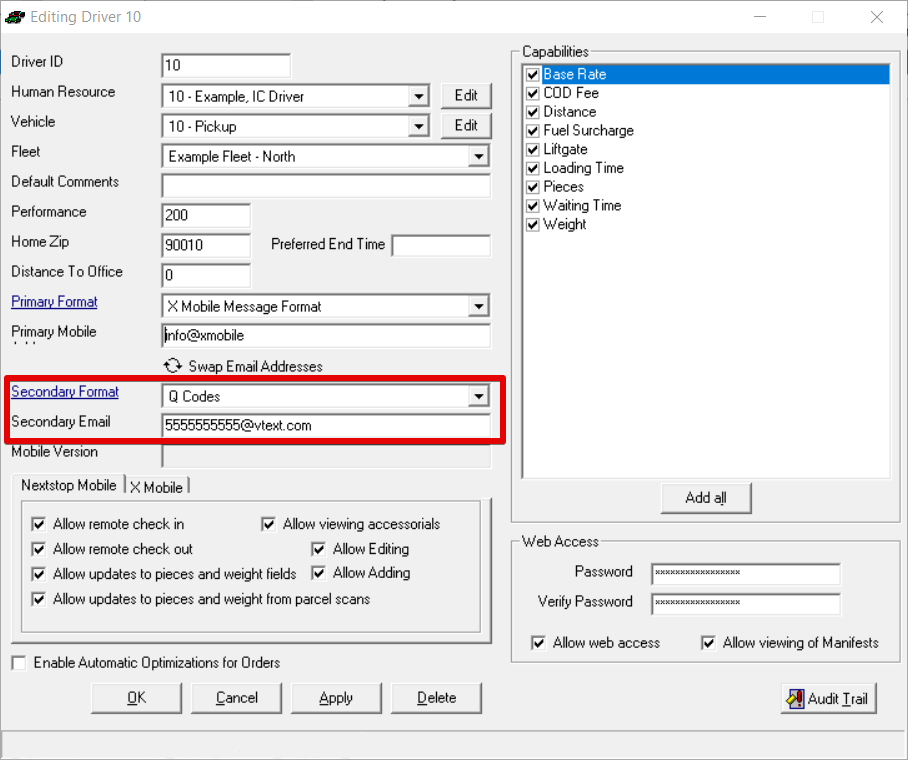
Make sure when you want to go back to using Nextstop you switch back to the Primary Email otherwise Nextstop will not function.